Quick Summary
In today’s eCommerce landscape, website speed is a crucial factor for growth. This guide offers a 10-step roadmap to eliminate “speed killers,” such as app bloat and unoptimized media. By following these steps, you can enhance your Shopify store SEO rankings, increase conversions, and provide a seamless mobile experience that drives revenue.
Table of Contents
Why Shopify Speed Matters More Than Ever in 2026
The speed of your Shopify store directly affects whether visitors become customers or leave without buying. Search engines now prioritize fast, mobile-optimized websites based on Core Web Vitals, making speed a crucial factor in SEO visibility. Additionally, online shoppers expect immediate, app-like experiences; any delay creates friction, frustration, and a loss of trust. Research shows that even a one-second slowdown can significantly reduce conversions and increase bounce rates. For Shopify businesses competing in crowded markets, speed is no longer optional; it is a vital growth lever that can enhance rankings, engagement, and revenue.
For Shopify stores, page speed directly affects:
- Search engine rankings (SEO)
- Conversion rates and sales
- Mobile shopping experience
- Ad performance and ROI
Even though Shopify provides fast, secure hosting by default, many Shopify stores still perform poorly due to themes, apps, images, and improper customization.
This article explains how to speed up your Shopify store step by step, in a simple, practical process you can implement immediately.
Understanding Shopify Speed: What Actually Slows Down Your Store?
Before fixing speed issues, it’s important to understand what causes slowness on Shopify.
1. Heavy Themes and Poor Frontend Code
Not all Shopify themes are built with performance in mind. Many themes:
- Load unnecessary JavaScript
- Include unused CSS
- Render large DOM structures
This increases First Contentful Paint (FCP) and Largest Contentful Paint (LCP) times.
2. Too Many Apps (The Biggest Shopify Speed Killer)
Every Shopify app:
- Injects scripts
- Loads CSS or JS files
- Adds API calls
Over time, unused or poorly coded apps can dramatically slow down your store, especially on mobile devices.
3. Unoptimized Images and Media
Large product images, banners, and videos:
- Increase page size
- Delay page rendering
- Hurt mobile performance
Images often account for 60–70% of page weight.
4. Third-Party Scripts and Tracking Tools
Marketing pixels, chat widgets, heatmaps, and analytics tools:
- Load externally
- Block page rendering
- Affect Time to Interactive (TTI)
5. Poor Content Structure
Excessive sections, sliders, and animations:
- Increase DOM size
- Delay layout stability (CLS issues)
How to Speed Up Your Shopify Store Website
Step 1: Measure Your Shopify Store Speed Correctly
Before you begin optimizing your Shopify store, it’s essential to measure its performance accurately. Utilize tools such as Google PageSpeed Insights and Lighthouse, with a specific focus on mobile results. Pay special attention to Core Web Vitals—LCP (Largest Contentful Paint), INP (Interaction to Next Paint), and CLS (Cumulative Layout Shift)—as these metrics highlight real user experience issues and can guide you in making effective speed improvements. Always assess the current performance before implementing any changes.
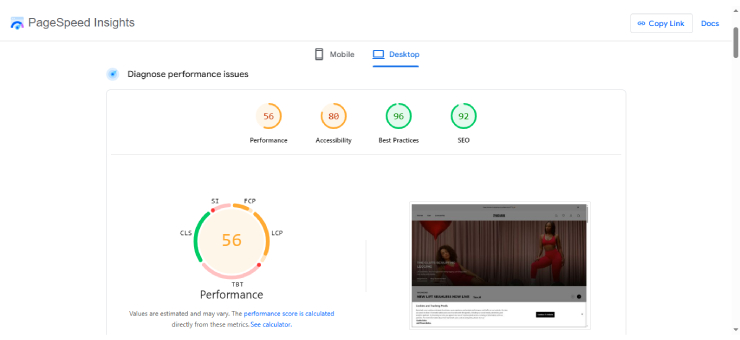
Recommended Speed Testing Tools
- Google PageSpeed Insights
- Lighthouse (Chrome DevTools)
- GTmetrix
Focus on these Core Web Vitals:
- LCP (Largest Contentful Paint) – should be under 2.5s
- INP (Interaction to Next Paint) – should be under 200ms
- CLS (Cumulative Layout Shift) – should be under 0.1
| Metric Category | Target Score (Good) | Needs Improvement | Poor |
| Loading (LCP) | ≤ 2.5 seconds | 2.5s – 4.0s | > 4.0 seconds |
| Responsiveness (INP) | ≤ 200 ms | 200ms – 500ms | > 500 ms |
| Visual Stability (CLS) | ≤ 0.1 | 0.1 – 0.25 | > 0.25 |
Step 2: Choose or Optimize a Fast Shopify Theme
Your Shopify theme significantly impacts your site’s speed. It’s important to choose a lightweight Online Store 2.0 theme designed for optimal performance. Avoid using heavy animations and unnecessary features. A clean, well-coded theme not only reduces load times but also improves Core Web Vitals, resulting in a faster and smoother shopping experience.
Why Theme Choice Is Critical
Your theme controls:
- HTML structure
- JavaScript loading
- Image rendering
- Overall UX
A slow theme cannot be fully fixed with apps.

Best Practices for Shopify Themes
- Use lightweight, performance-optimized themes
- Avoid themes with excessive animations
- Prefer themes built on Online Store 2.0
- Online Store 2.0 Advantages
- Better section control
- Cleaner code architecture
- Improved rendering performance
If your store uses an older theme, upgrading can deliver immediate speed improvements.
Step 3: Remove or Replace Unnecessary Shopify Apps
Having too many Shopify apps can significantly slow down your store by adding unnecessary scripts and requests. It’s important to regularly review all installed apps, remove those no longer in use, and consider replacing multiple apps with native Shopify features where possible. By choosing fewer, well-selected apps, you can achieve faster load times and improved overall performance.
Why Apps Slow Down Shopify
Each app adds:
- Extra HTTP requests
- JavaScript execution time
- API calls
Many store owners install apps and forget to remove them, even after uninstalling features.
- App Optimization Checklist
- Audit all installed apps
- Remove apps you no longer use
- Replace multiple apps with one multi-purpose app
- Use Shopify’s native features where possible.
Step 4: Optimize Images the Right Way (Not Just Compressing)
Image optimization involves more than simply compressing files. Make sure to upload images at the correct display size, utilize modern formats like WebP, and enable lazy loading. Additionally, reduce the size of large banners and eliminate unnecessary media above the fold to improve load time, particularly on mobile devices.
Why Image Optimization Matters
Large images are slow:
- Homepage banners
- Collection pages
- Product galleries
Even with Shopify’s CDN, poor image handling hurts performance.
Image Optimization Best Practices
- Upload images at display size, not oversized
- Use modern formats (WebP, where supported)
- Avoid background videos unless necessary
- Limit the number of images above the fold.
Lazy Loading Images
Lazy loading ensures:
- Images load only when needed
- Faster initial page load
- Better mobile performance

Shopify supports lazy loading, but themes must implement it correctly.
Step 5: Reduce JavaScript and CSS Bloat
Minimize JavaScript and CSS bloat by eliminating unused code, deferring non-essential scripts, and loading assets only where needed.
Why JavaScript Is a Major Bottleneck
Excess JavaScript:
- Blocks rendering
- Delays user interaction
- Hurts INP scores
How to Reduce JS and CSS Load
- Remove unused theme features
- Defer non-critical scripts
- Load scripts only on required pages
- Avoid global loading of app scripts.
This often requires developer-level optimization, but the performance gains are significant.
Step 6: Optimize the Shopify Homepage
The homepage significantly affects users’ perception of loading speed. To improve this, avoid using heavy sliders, large videos, and excessive animations. Keep the content that appears above the fold minimal and focused. Load secondary sections only when necessary to reduce initial page load time and create a faster, more engaging first impression.
Common Homepage Mistakes
- Multiple sliders
- Heavy animations
- Large hero videos
- Too many sections
Homepage Optimization Tips
- Use one static hero banner
- Reduce above-the-fold content
- Remove unnecessary sections
- Load secondary content after interaction.
Step 7: Improve Mobile Performance Specifically
Most Shopify traffic originates from mobile devices, which are more sensitive to speed issues. Optimize layouts for smaller screens, minimize heavy scripts, simplify navigation, and test performance with mobile speed tools to ensure a fast, smooth shopping experience.

Why Mobile Speed Is Critical
In most Shopify stores:
- 70–85% of traffic is mobile
- Mobile devices have slower CPUs
- Network conditions are less stable.
Mobile Optimization Best Practices
- Test only on mobile PageSpeed
- Reduce DOM complexity
- Optimize touch interactions
- Avoid hover-based UI elements.
Step 8: Optimize Fonts and Icons
Limit your store to one or two font families and minimal font weights. Use system fonts whenever possible and SVG-based icons to reduce file size, improve loading speed, and enhance visual consistency across all devices.
Font Optimization Tips
- Use a maximum of 1–2 font families
- Limit font weights
- Use system fonts where possible
- Preload critical fonts
Icons should be:
- SVG-based
- Loaded inline or via sprite
Step 9: Minimize Third-Party Scripts
Third-party scripts, such as chat tools, tracking pixels, and widgets, can slow down your store. Load them asynchronously, activate them on user interaction, and remove unnecessary scripts to improve performance.
Common Third-Party Speed Killers
- Chat widgets
- Heatmaps
- Marketing pixels
- Review widgets
Best Practices
- Load scripts asynchronously
- Trigger scripts after user interaction
- Remove duplicate tracking tools
Each script should earn its place in your store.
Step 10: Use Shopify Speed Reports & Continuous Monitoring
Regularly check Shopify’s built-in speed reports to monitor performance changes. Ongoing evaluation helps to identify new issues early and ensures your store remains fast after updates or app modifications. You can find Shopify’s speed reports in the admin dashboard.
Use them to:
- Monitor performance changes
- Identify new issues after updates
- Track improvements over time
Speed optimization is not a one-time task-it is ongoing.
When to Consider Headless Shopify for Maximum Speed
Consider headless Shopify development when you require ultra-fast load times, advanced customization, and app-like experiences, particularly for high-traffic, brand-focused, or performance-critical e-commerce stores. For these stores, headless Shopify can provide:
- Sub-second load times
- App-like UX
- Full frontend control
Best for:
- Large D2C brands
- Performance-critical stores
- Global audiences
Final Thoughts: Speed = Revenue in 2026
In 2026, speed is not optional; it’s a competitive advantage.
A fast Shopify store:
- Ranks higher on Google
- Converts more visitors
- Reduces ad spend wastage
- Builds customer trust
Even small performance improvements can lead to significant revenue growth over time.
Need Help Speeding Up Your Shopify Store?
If you are looking to optimize your Shopify store for speed and profitability, the experts at Ayatas Technologies offer the specialized knowledge needed to make your site leaner and more efficient. With a legacy dating back to 2008, Ayatas brings decades of industry experience across major platforms, including Shopify, WooCommerce, and Adobe Commerce. By combining a partnership-driven approach with a sharp focus on SEO, performance, and conversion optimization, they help businesses of all sizes—from startups to enterprise clients—achieve sustainable, long-term growth.